
Start Designing
Ready to start designing but still want a few pointers? Make sure to read througout this page to get a few tips on how the app works!
The Shape Library
The Shape Library contains thousands of commonly used shapes. If your equipment is already available, simply select it and add it directly to your design grid.
Once a shape has been added, you can adjust its position and use additional options such as finger notches, rotation and spacing controls.
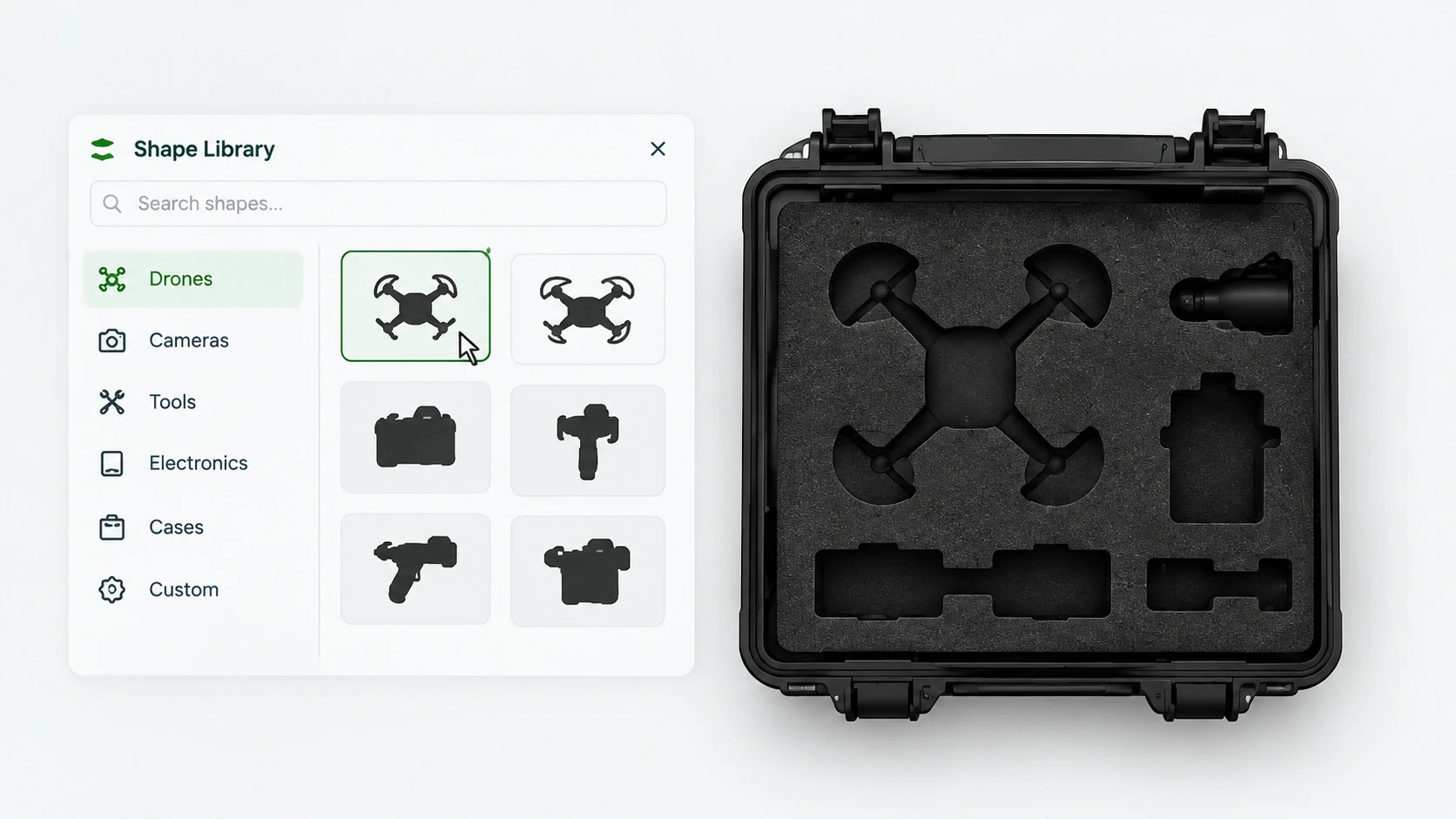
Photo Tracer
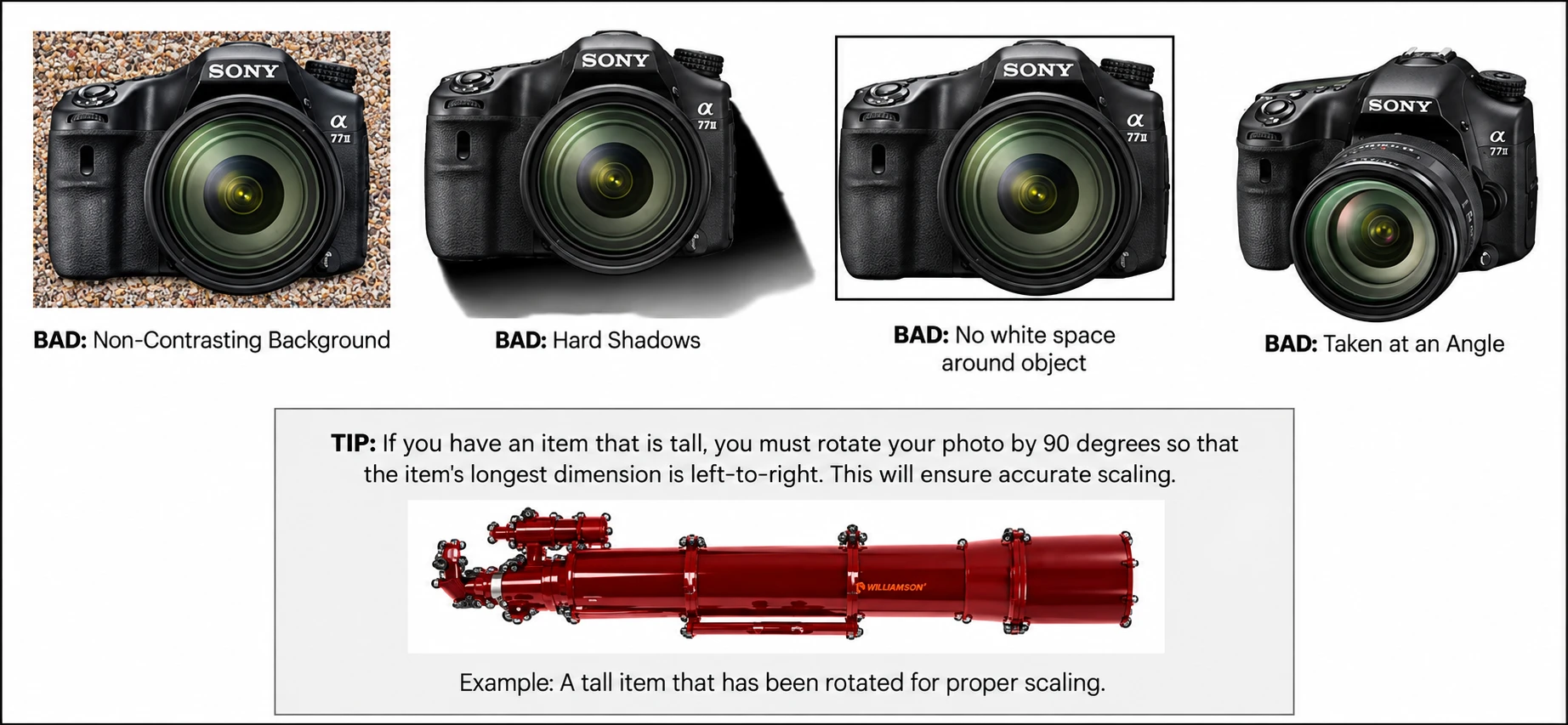
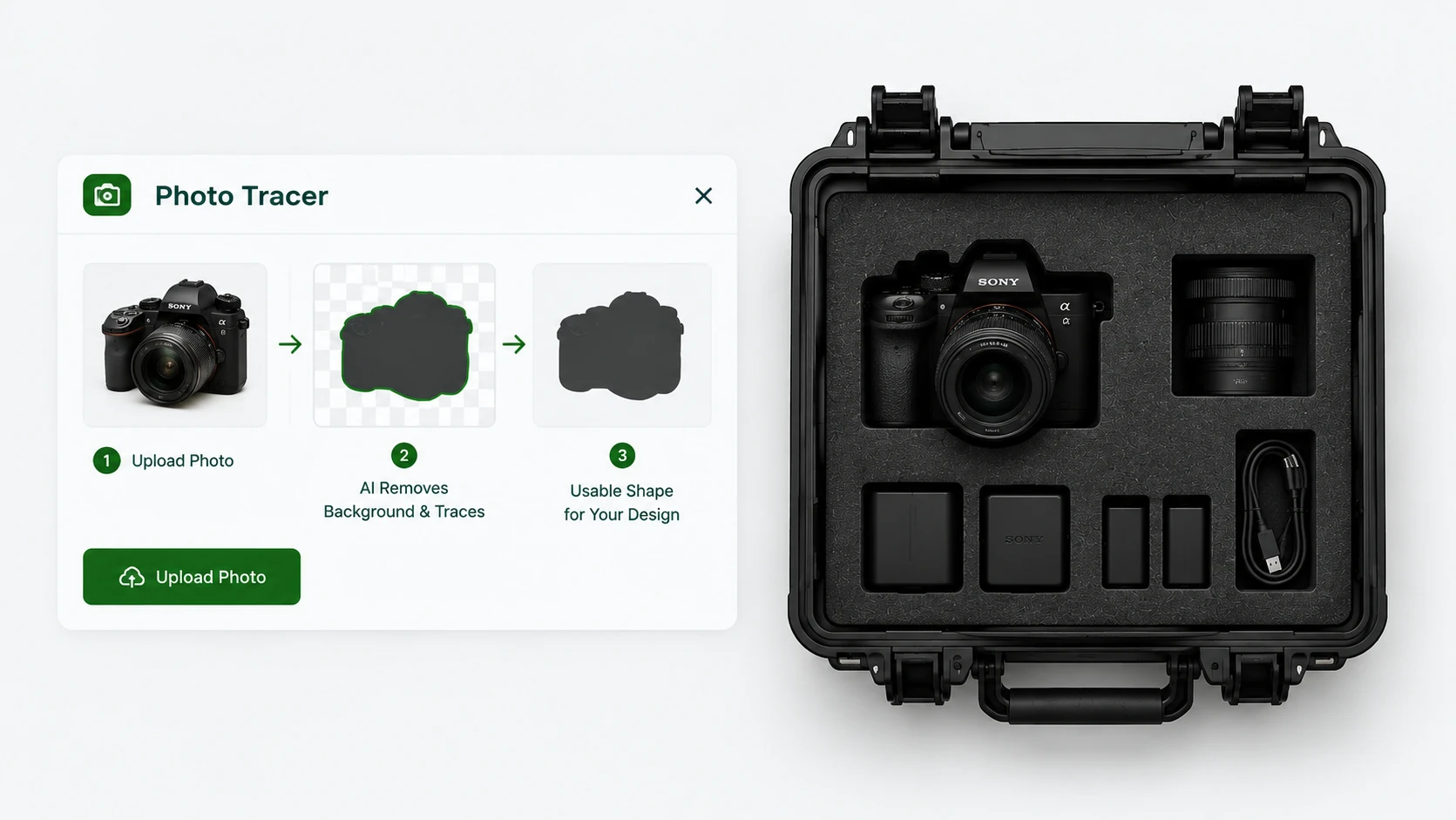
Cannot find your item in the Shape Library? Photo Tracer lets you upload a photo of your object and create a usable shape from it.
The tool removes the background and traces the outline, making it easier to add unusual or customised equipment to your foam layout.
Rectangle Tool
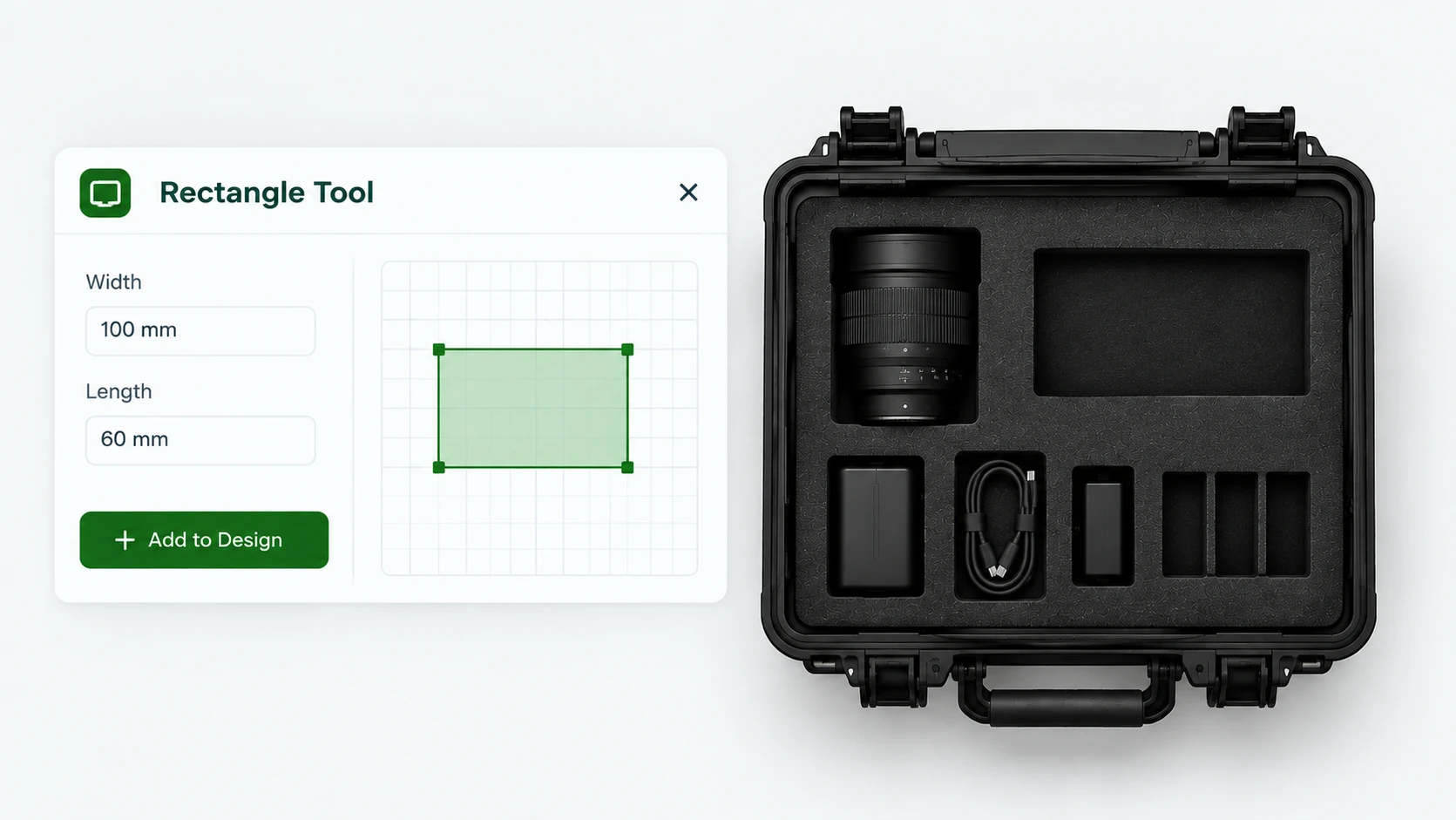
Use the Rectangle tool when you need a simple shape with exact dimensions. Enter the width and length of your object and place it directly on the design grid.
This tool is useful for rectangular tools, electronics, boxes and equipment with straight edges.
Circle Tool
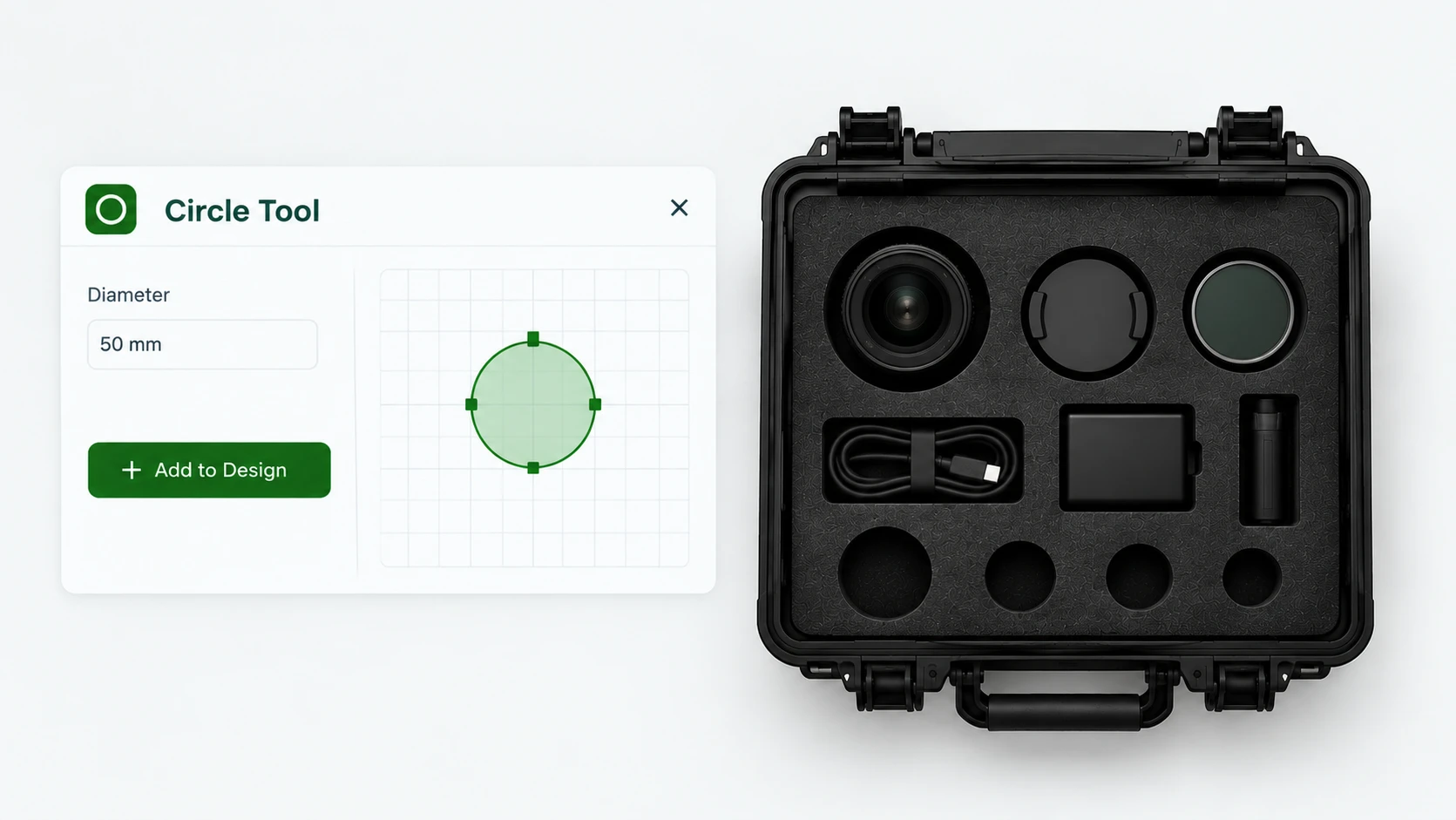
The Circle tool helps you create round cut-outs for equipment such as lenses, containers, speakers, tools and other circular objects.
Enter the required diameter, place the circle on the grid and adjust its position in your layout.
Draw Tool
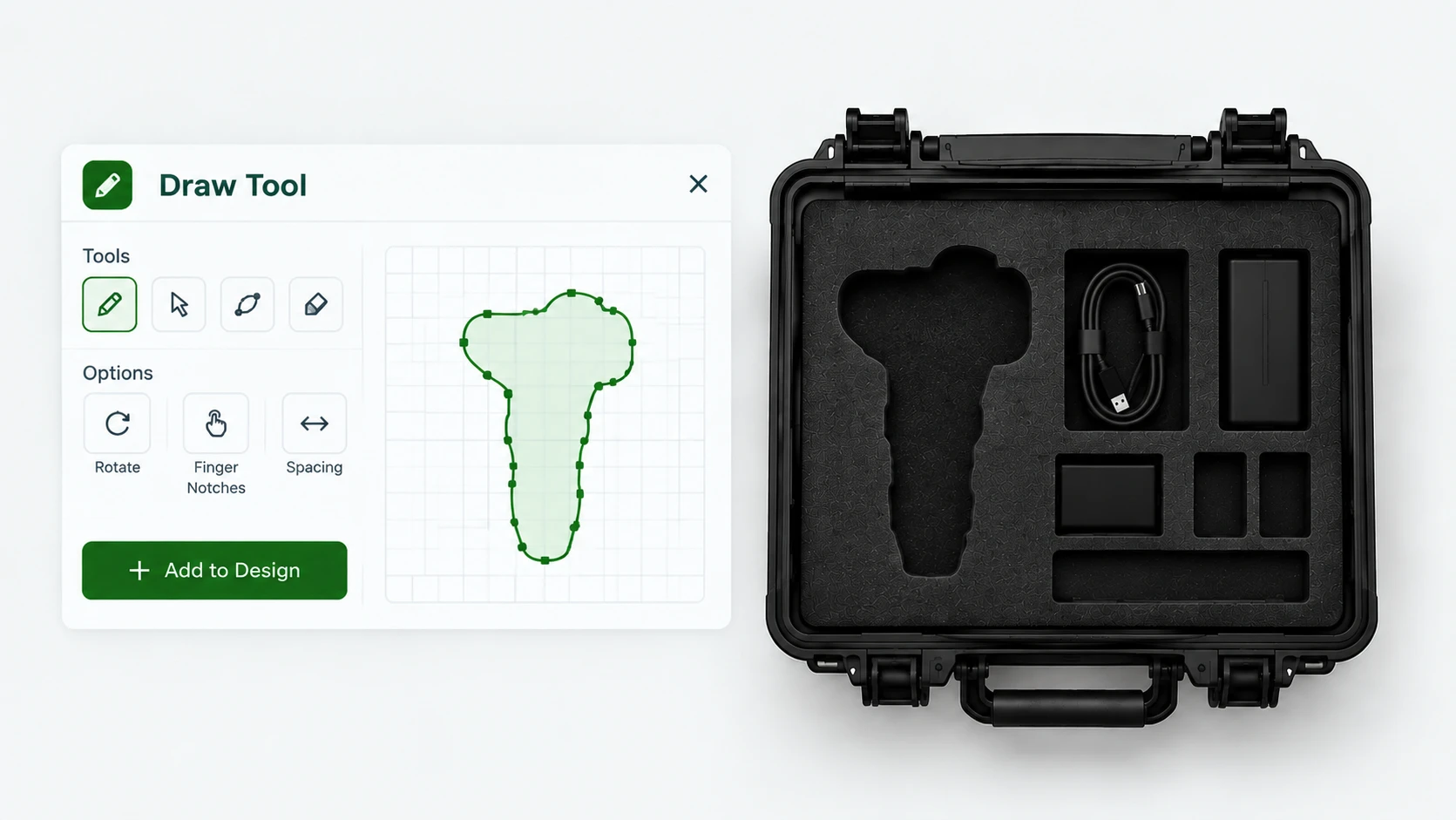
If your item has an unusual shape, use the Draw tool to create a custom outline directly on the design grid.
Once your shape is complete, you can rotate it, reposition it and add practical details such as finger notches.
3D View
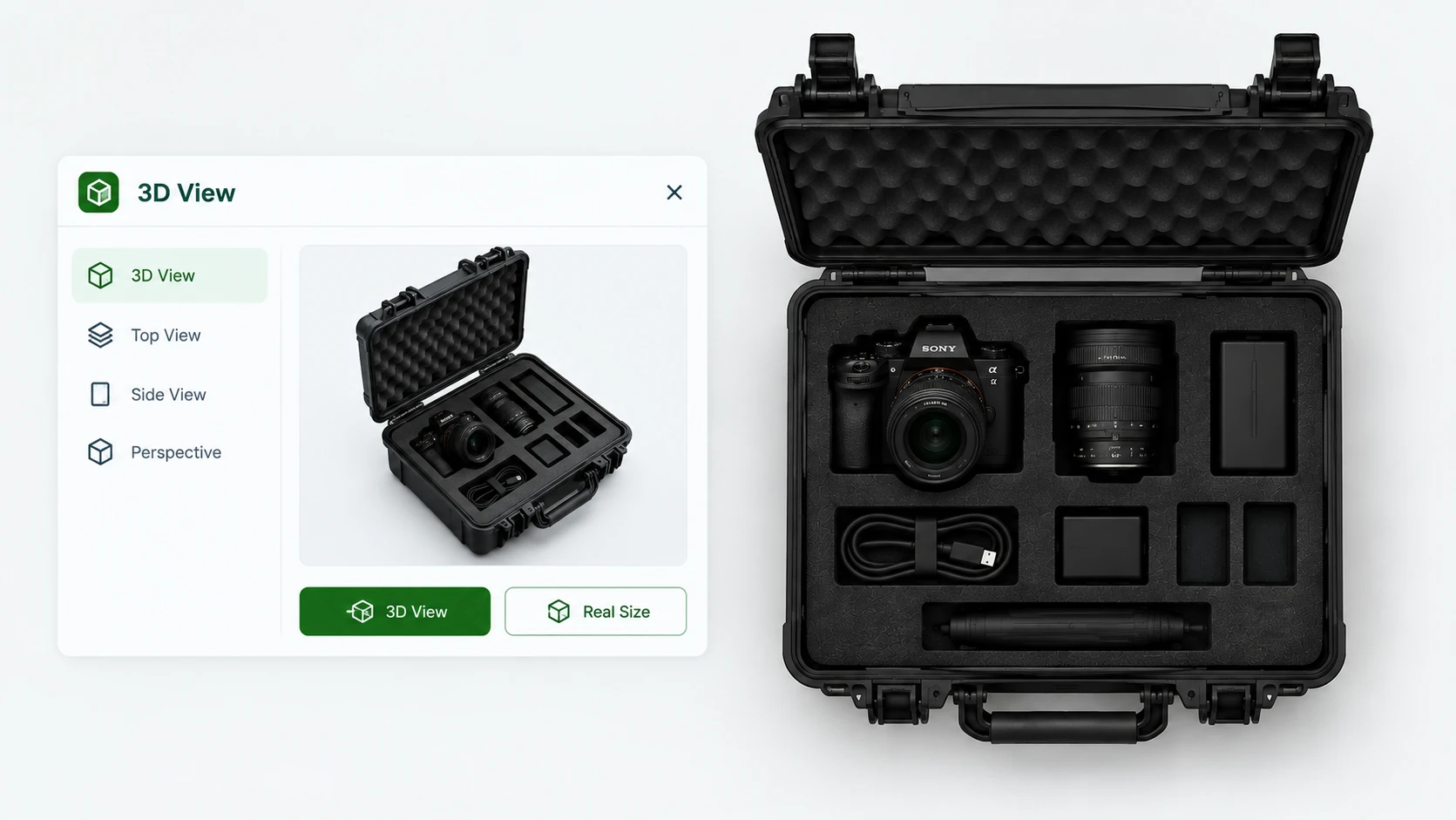
Use the 3D View option to preview your custom foam insert before it is produced. This gives you a clearer impression of the final layout inside your selected case.
The preview helps you check the placement, depth and overall appearance of your equipment before you complete your design.